

Claude Couldn’t See Its Print Statements Without Xcode —Here’s How We Fixed It

Problem
This is exactly the issue we ran into with Claude. When running our iOS app from the terminal using xcodebuild, Claude couldn’t see its own print statements. Without access to logs, it become almost impossible for Claude to autonomously iterate and debug issues.
Why It Matters
For many developers, debugging starts with print statements. If you're anything like me, your code looks a lot like this:
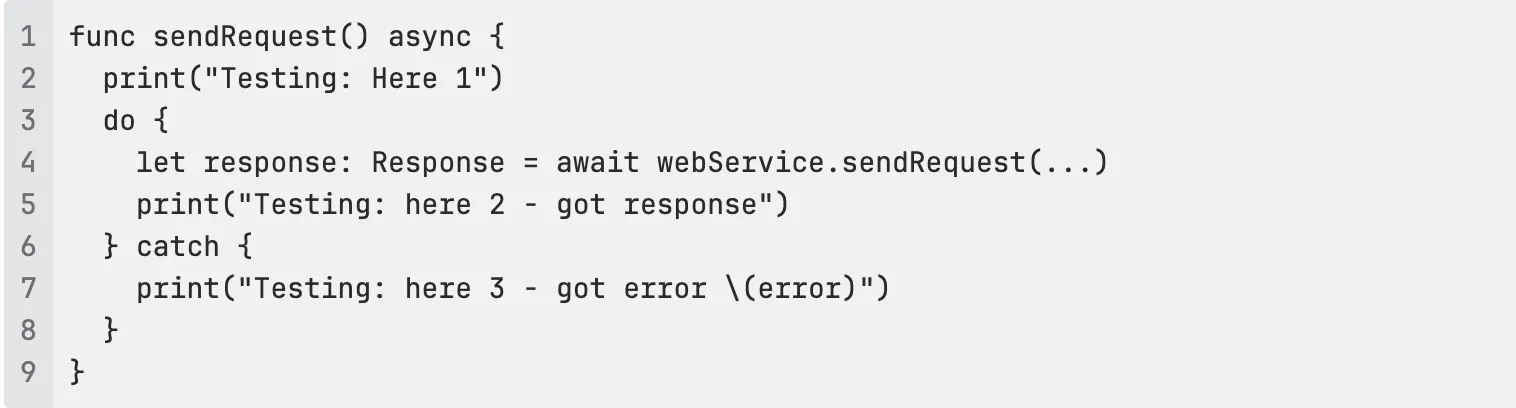
This works because, historically, we ran our apps through Xcode and inspected logs in the console pane. However, our iOS team at Grindr is operating CLI first, meaning it’s rare for us to even open Xcode anymore. Which brings us to the core issue:
How can Claude debug or validate its work if it cannot see its own print statements?

Why Can't Claude see print statements?
The iOS simulator runs as a separate process. When we use the print statement it writes to that process' standard out. However, Claude also runs as a separate process. Basically, the app logs to Process A but Claude is in Process B. To solve this, we needed to log to a destination that both Claude and the running Simulator have access to. We explored a number of ideas, including a local Websocket server, Console.app, and logging to a local file.
Solution
Ultimately, we went with the last option --logging to a local file and streaming it with tail. Here is how we did it.
Deciding Where To Log
When we run the app on a simulator, the OS will give our app a folder that lives on our laptop. Therefore, we can use the FileManager API on iOS to write to a file, and we know this file will live somewhere in ~/Library/Developer/... on our mac (more on this below):
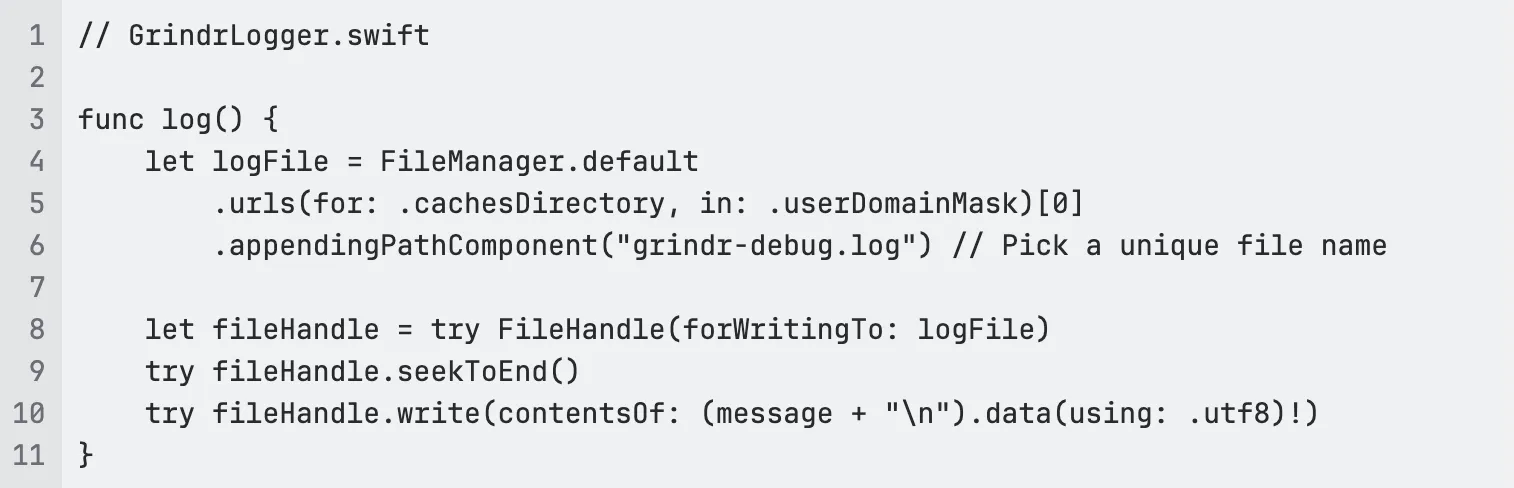
Figuring out where our app lives on the file system
Since the simulator filesystem is just a folder on our laptop, any process can access these files. The simulator will log to a specific file, and we just need to figure out two things:
- What is the simulator ID?
- What is the app container ID?
Once we have these, we know our log file will be at the following path:~/Library/Developer/CoreSimulator/Devices/<SIMULATOR-ID>/data/Containers/Data/Application/<APP-UUID>/Library/Caches/<my-log-file>
Getting the simulator ID
Getting the simulator ID should be pretty easy. A command such as xcrun simctl list devices | grep "(Booted)" should get you the right simulator if you have a simple setup.
Getting the App UDID
Apple will assign each app a UUID, which is a folder for the app to store its files. To get the UDID, you can run the following command xcrun simctl get_app_container <SIMULATOR-UDID> <BUNDLE-ID> data.
Finally, how do we stream the file?
This is the simple part, now that you have the file path for your logs, you can just call tail -f <path-to-log-file> and this will print the new lines as they are appended.
Putting it all together
The TL;DR is that you can:
- Write some swift code using FileManager to write to hard-coded file
- Use
xcrun simctlto discover your simulator id - Use
xcodebuildto run the app - Use
xcrun simctl get_app_containerto figure out the app ID and file path the OS assigned to your app instance - Stream that file with
tail -f
At Grindr, we built lightweight wrappers around the xcodebuild, xcrun, and other xcode CLI commands.
Conclusion
Hopefully this helps you become more autonomous with Claude and other coding agents! Giving Claude access to its own print/log statements has allowed us to automate several other tasks such as telemetry, error logging, ...etc.
Please leave a comment if you solved this problem in another cool way! Happy coding 😀








.jpg)


